
Setup
IPTV Smarters Pro Setup Guide for Canada (2026)
Set up IPTV Smarters Pro on Android, Fire TV, iPhone, Apple TV and Windows: Xtream Codes login, EPG, catch-up, multi-screen and parental controls.
Setup
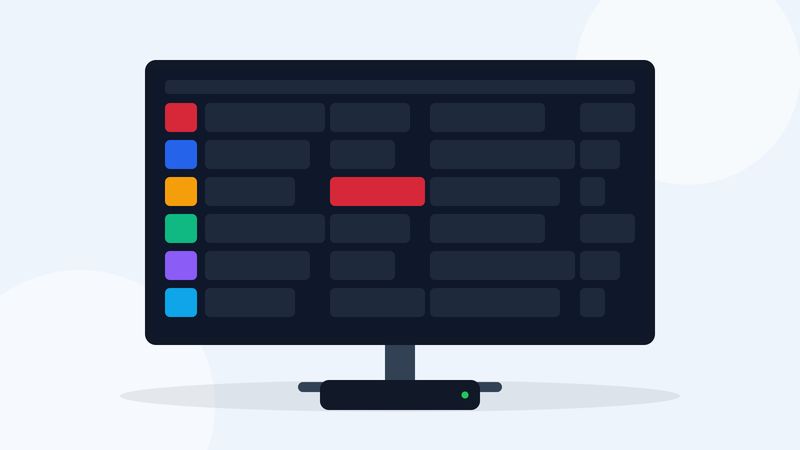
To set up TiviMate: install it from the Google Play Store on an Android TV or Google TV device (or with Downloader on a Firestick), select Add playlist, choose Xtream Codes, and enter the server address, username and password from your provider. TiviMate then loads channels and the TV guide in a layout that looks like a cable box. TiviMate only runs on Android-based devices; on iPhone or Apple TV, use IPTV Smarters instead.
TiviMate is built to feel like a cable or satellite receiver. The guide runs down the left side, channel numbers work with the remote, and switching channels is quick even with thousands of channels loaded. It is a player only: you bring the playlist from your IPTV provider. Because it is designed for TV remotes, it is at its best on Android TV, Google TV and Fire TV devices.
TiviMate is built for Android TV, so it uses the TV remote throughout.
http:// and the port.With Xtream Codes, the guide and catch-up information come in automatically.
If you only have an M3U link, choose Add playlist > Enter URL, type the link carefully (or use the TiviMate companion option to send it from your phone if offered), and select Next. Then add the EPG address from your provider under Settings > EPG so the guide fills in.
Open Settings > Playback:
If freezing continues on several channels, check your connection with the CIRA Internet Performance Test or our IPTV speed test. Plan for about 15 Mbps per Full HD stream.
A long, unsorted channel list is the main reason people give up on a player. Ten minutes of tidying pays off every day:
TiviMate Premium is bought through the separate TiviMate Companion app on an Android phone, then activated on your TV device by signing in with the same account. The Companion app is also where you manage which devices use your Premium account. If you do not have an Android phone, check the current purchase options on the TiviMate Google Play page before you buy.
After setting everything up, use the backup option in TiviMate's settings to save your playlists, favourites and preferences to a file. If you reset the device or move to a new box, restoring the backup takes a minute instead of an evening. Store a copy somewhere other than the TV device itself.
Premium lets you add several playlists, for example your IPTV subscription and a free over-the-air or local playlist. Each playlist keeps its own groups and guide. If you only have one subscription, keep a single playlist; it keeps the channel list short and the app fast.
A Full HD hour takes about 3.6 GB, so a 64 GB drive holds roughly 15 hours. Recordings use one connection while they run, just like watching live.
TiviMate is designed for a TV remote rather than a touch screen. During playback, pressing OK brings up the channel list, the arrow keys move through it, and the Back button closes it again. Long-pressing a channel opens options such as adding it to favourites or locking it. If your remote has number keys, turn on channel numbers in settings and type a number to jump straight to that channel.
Spending five minutes learning these buttons is what makes TiviMate feel like a cable box rather than an app.
TiviMate installs on some Android phones and tablets, but its layout is built for a TV screen and a remote, so it can feel awkward with touch. For phones and tablets, IPTV Smarters is the better fit, and our IPTV Smarters Pro guide covers it. You can use both apps with the same subscription, as long as the number of streams playing at once stays within your plan's connections.
Install TiviMate on the new device, restore your settings backup if you made one, and sign in to Premium with the same account. If you did not make a backup, add your playlist again with the Xtream Codes details from your activation email; favourites will need to be set up again.
Premium includes a parental control PIN. Set the PIN in settings, then lock channel groups such as adult categories. Locked groups ask for the PIN before they open. Our parental controls guide covers TiviMate, IPTV Smarters and the device-level controls on Fire TV and Google TV.
TiviMate is free to install and play live TV with a guide. Premium is a paid upgrade that adds favourites management, catch-up, recording and multi-view.
No. TiviMate only runs on Android-based devices such as Android TV, Google TV and Fire TV. Use IPTV Smarters on Apple devices.
No. TiviMate is a player. You add a playlist from your IPTV provider with an Xtream Codes login or an M3U link.
Update the EPG in Settings and check the device's date and time zone. With an M3U link, you also need to add your provider's EPG address.
Set Settings, Playback, Buffer size to Large, use a wired connection if you can, and confirm your line has about 15 Mbps per Full HD stream.
No. Recording is part of Premium. The free version plays live channels with the TV guide.
Setup
Set up IPTV Smarters Pro on Android, Fire TV, iPhone, Apple TV and Windows: Xtream Codes login, EPG, catch-up, multi-screen and parental controls.
Comparisons
Which device is best for IPTV in Canada? Fire TV Stick 4K Max, Google TV Streamer, NVIDIA Shield, Formuler, Apple TV, Smart TVs and Roku compared.
Test it on your own device for 24 hours, then choose a plan in Canadian dollars.